Timeline
The Timeline fires macros frame-accurately from timecode. Any timecode the FrenschPress sees can drive it: incoming MTC on USB 1 or USB 2, Art-Net timecode, LTC via the USB host dongle, or its own MTC Master.
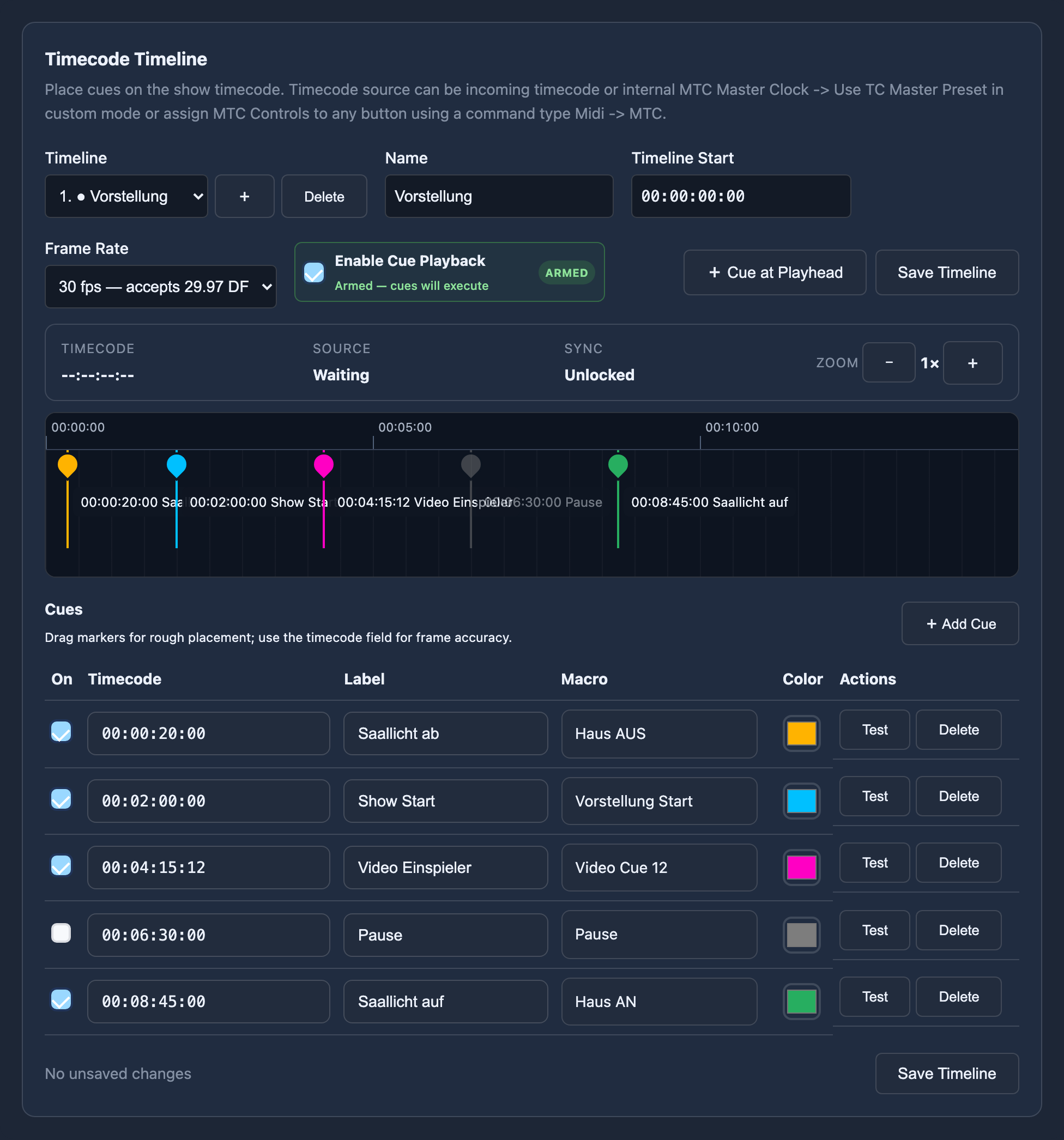
The Timeline is its own tab in the web interface (Timecode Timeline). It replaces nothing — it adds a time-driven layer on top of the button mappings.
Layout
| Area | Contents |
|---|---|
| Toolbar | Timeline selector, name, view start, frame rate, arm switch, save |
| Live strip | Current timecode, source, sync state, zoom |
| Ruler & track | Time ruler, playhead and draggable cue markers |
| Cue table | Every cue of the active timeline with all its fields |
Multiple timelines
Several timelines can exist side by side and be armed independently.
| Control | Function |
|---|---|
| Timeline (dropdown) | Selects the timeline to edit. Armed timelines are marked with ●. |
| + | Creates a new timeline |
| Delete | Deletes the current timeline |
| Name | Display name (max. 80 characters) — also accepted as a selector by OSC and the Stream Deck |
| View Start | Start point of the view (HH:MM:SS:FF). Affects display only, not cue times. |
| Frame Rate | 24 fps, 25 fps or 30 fps — accepts 29.97 DF |
Arm / disarm
The Armed / Disarmed switch decides whether this timeline's cues actually execute. While disarmed, the switch reads Disabled — cues will not execute.
The arm state is saved immediately, independently of unsaved cue edits. A timeline can therefore be armed mid-show without accidentally committing a half-finished edit. The display distinguishes live saved cues from unsaved changes.
Arm/disarm is also reachable from:
- OSC:
/fpress/timeline/arm,/fpress/timeline/disarm,/fpress/timeline/arm_all,/fpress/timeline/disarm_all— see OSC Control - Stream Deck: tools menu →
TIME CODE→TIME LINE— see On-deck tools
Cues
| Column | Description |
|---|---|
| On | Enables/disables a single cue — hide it without deleting it |
| Timecode | Position HH:MM:SS:FF, frame accurate. Validated against the timeline's frame rate. |
| Label | Free display name for the cue |
| Macro | Assigned macro |
| Color | Marker colour on the track (default #ffb300) |
| Actions | Test and delete |
Creating a cue
- + Cue at Playhead creates a cue at the current playhead position.
- + Add Cue above the table does the same; with no timecode running the cue lands on
00:00:00:00. - Markers can be dragged on the track for rough placement; the exact position is then set in the timecode field.
Assigning a macro
Macro assignment uses the same picker and the same Quick Create / Multi-Step workflows as button mapping in Custom Mode. You can pick an existing macro from the library or create a new one on the spot.
Testing a cue
The Actions column fires a cue immediately, with no timecode running. Useful for verifying assignments while building the show.
Live operation
| Readout | Meaning |
|---|---|
| Timecode | Currently received position |
| Source | Active timecode source, Waiting when nothing is arriving |
| Sync | Unlocked until the timeline has locked to the incoming TC |
| Zoom | Display resolution (− / +) |
The playhead follows the running timecode across the track. Cues from other armed timelines are shown as well so overlaps are visible; overlapping cues additionally raise an overlap warning above the track.
Frame rates
Cue playback is native for 24, 25 and 30 fps.
Incoming 29.97 DF locks to a 30 fps timeline and is interpreted as nominal 30 fps. This matches common show-console behaviour, but it is not native drop-frame arithmetic. For frame-exact work over long running times, use an integer frame rate.
If an armed timeline's frame rate does not match the incoming rate code, that timeline is not executed.
Show safety
Timeline playback is hardened against the disturbances that actually occur in a show:
| Situation | Behaviour |
|---|---|
| Initial lock | Cues before the lock point are not fired retroactively |
| Repeated frames | A cue fires exactly once per pass |
| Short frame gaps | Skipped cues are caught up on the next valid frame |
| Rewind / large seek | Cue states are reset so cues can fire again |
| Stale timecode | Playback stops instead of free-running |
| Frame rate mismatch | The timeline is ignored rather than firing at wrong positions |
In addition:
- Concurrent editing in two browsers is caught by configuration revisions — the second save is rejected instead of silently overwriting.
- Saving is atomic; an interrupted write is recovered on the next start.
- Timelines are part of backup and restore and are reset by a factory reset.
Saving
| Readout | Meaning |
|---|---|
No unsaved changes | What you see matches what is stored |
| Save Timeline | Writes the timeline and its cues to the device |
The arm switch takes effect immediately; everything else only on Save Timeline. Cues can therefore be reworked calmly during a running show and committed deliberately.