Settings
Settings is where you configure the FrenschPress's network, interfaces, storage, backup and updates. Each area has its own card.
Apply general changes with Save Settings at the bottom of the page. There are three exceptions:
- USB roles (USB Network, HID Mode, USB Host Support) have their own save buttons because they need a restart.
- Art-Net tuning saves immediately.
- HID mappings save immediately.
The relevant detail page covers each of these.
Device name

If you work with several units, give each one a distinct Device Name. Leave the field blank to use the default name. The name appears in the web interface and is used by network services.
Ethernet

With Use DHCP, a DHCP server assigns the address.
For a fixed address:
- Turn Use DHCP off.
- Choose Manual IP Settings → Open.
- Enter the IP address, subnet mask, gateway and DNS.
- Choose Apply. The FrenschPress saves the values and restarts immediately.
LAN IP and LAN MAC show the actual state, not just the values you entered.
After Save Settings, the web interface may tell you a restart is needed. Afterwards, open the FrenschPress at its new address. Without a DHCP server, DHCP gives it no usable address, so use a suitable fixed address for a direct connection. See Ethernet connection.
WiFi

- Turn on Use WiFi.
- Open Scan & Connect and scan for networks.
- Choose a network, enter its password and connect.
- For a hidden SSID, use Add Hidden Network.
The manager also lists known networks, which you can connect to or forget. Once connected, you see the SSID, IP and signal strength. Use DHCP works as it does for Ethernet. With DHCP off, enter IP, subnet, gateway and DNS under Manual Settings.
Ethernet takes priority in normal operation. So with WiFi switched on and Ethernet connected, WiFi does not have to be connected at the same time. See also Access point.
AP password
The AP Password card protects the setup access point. Change opens the password dialog. The factory password is 12345678; replace it with your own. This WiFi password has nothing to do with your web interface account.
USB Network

Enable USB Network provides a network adapter over USB. Connection guide & risks explains the cabling. Apply it with Save & Reboot.
The USB link is passed through to the Ethernet network. So never connect a computer to the same show network through USB and through its own LAN or WiFi adapter at the same time. Setup and troubleshooting are on USB Network.
OSC input port

OSC Listen Port is the UDP port for commands to the FrenschPress. The default is 53001; the range is 1024–65535. The info button opens the OSC command list.
The FrenschPress also receives QLab feedback on this port. If you change it, switch every external sender to the new port. The port a macro sends to is set in its target or command instead.
MTC over Art-Net

Turns Art-Net timecode reception and output on. Advanced… opens live diagnostics, stability profiles and routing. Live shows whether timecode is coming in or going out. Every parameter is covered on Art-Net Timecode.
RTP-MIDI (Network MIDI)

Enable RTP-MIDI turns on network MIDI alongside USB. Under Sessions & status you set up connections and see the participants. Details, including automatic reconnection to up to two saved peers, are on RTP-MIDI setup.
HID Mode

With Enable HID Mode → Save & Reboot, the FrenschPress works as a USB keyboard and mouse. USB-MIDI, macros, Companion control and Stream Deck are then off. You assign the buttons afterwards on Device Mode. See HID Mode.
USB Host Support

Enable USB Host support → Save & Restart USB 2 turns USB 2 into a host for a supported Stream Deck or the LTC dongle. USB 2 then no longer works as a MIDI device port for the computer. The live status shows the detected accessory or an error. If the role change fails, use Retry now.
The accessory needs an external power supply. Connections, devices and limits are on USB host.
Storage

Storage shows how much space is in use. Manage opens Manage Space, where you remove individual macros, plugins, layouts, user presets and targets. When storage is full, saving, installing a plugin and recording a snapshot can fail.
Backup function
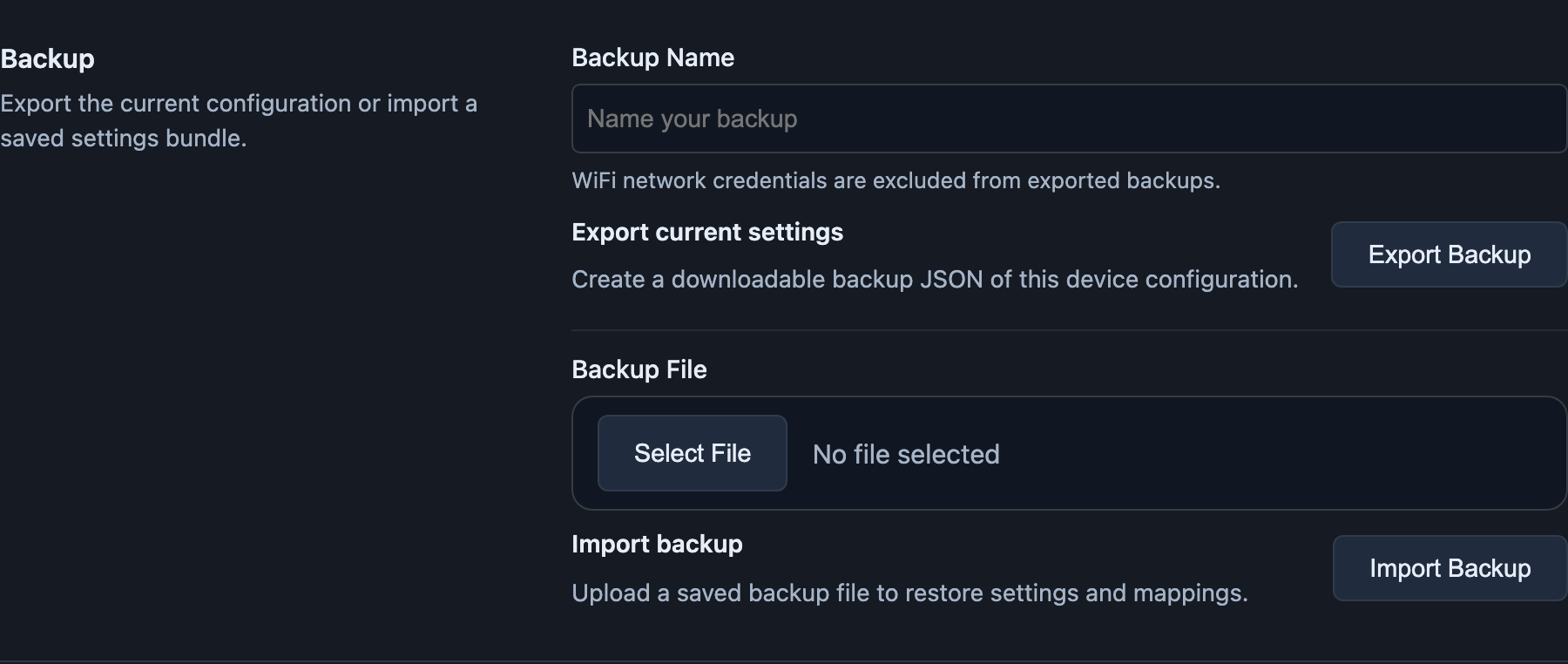
Export a backup:
- Enter a Backup Name.
- Choose Export Backup. Keep USB 2 connected until the download has finished.
- Keep the JSON file on your computer.
Restore a backup:
- Export the destination device's current state first.
- Choose Select File and pick the backup file.
- Choose Import Backup and wait for the progress to complete. The FrenschPress then restarts.
- Check your important snapshots in the monitor.
A backup contains device settings, macros, presets, plugins, targets, timelines, HID mappings and the Stream Deck configuration. Recorded snapshots and the available Stream Deck image files are included too. Snapshot recordings share a combined backup limit of 128 KiB. Anything beyond that may be missing.
An import replaces settings and assignments. Network values from the backup can change the destination device's address. Older backup files can be imported as well; they may contain no image files.
WiFi credentials are not included in the export. The credentials on the destination device are kept. Connect a different device to the WiFi yourself if needed. Keep the original files of your custom key images separately. Custom variables are temporary: you need to set them again after a restart.
Update

The card shows which firmware is available. What's new lists the changes; Update Now starts the installation. The computer running the browser needs internet access and a connection to the FrenschPress at the same time. The procedure and restart are described on Firmware update.
Troubleshooting
| Symptom | Cause | Fix |
|---|---|---|
| Web interface unreachable after a network change | The FrenschPress has a new address | Open it at the new address. Without a DHCP server, use a fixed address; see Ethernet. |
| WiFi is switched on but not connected | Ethernet is connected and takes priority | Expected behaviour. See WiFi. |
| Saving, installing a plugin or recording a snapshot fails | Storage is full | Free up space under Manage; see Storage. |
| Export reports unavailable images | That part of the backup is incomplete | Check the connection, keep USB 2 connected and export again. |
| Snapshots missing after a restore | The recordings exceeded the 128 KiB limit | Check your important snapshots in the monitor and record missing ones again. |
| Update Now does not work | The computer lacks internet access or a connection to the FrenschPress | Check both; see Firmware update. |