Welcome to FrenschPress
Thank you for working with FrenschPress. It is a compact controller for theatre, shows and live events: three mechanical buttons, an encoder and the connections to your show systems.
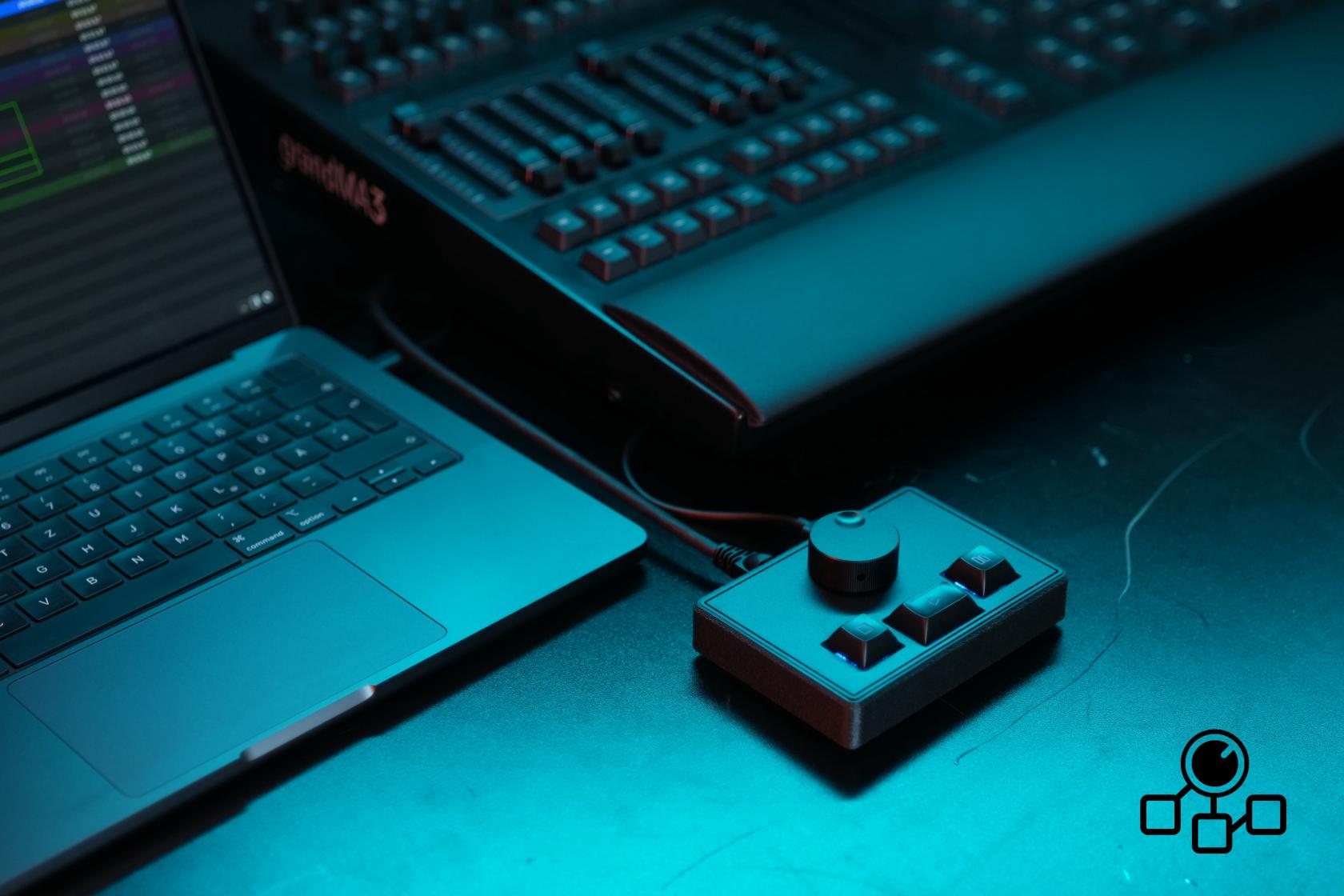
Over USB, FrenschPress appears as a MIDI device without additional drivers. For network commands, connect it to your show network. To run it without a computer, power it through USB-C from a stable 5 V / 1 A supply. Your saved configuration is kept when the power is off.
The name comes from Konrad Frensch. The device has little to do with coffee, although we do enjoy it.
Getting started
- Read the safety instructions and check the package contents.
- Connect FrenschPress. Out of the box it controls QLab over MSC via USB.
- Open the web interface over Ethernet or the access point.
- Create your account and take a tour of the web interface.
- Choose and configure your mode under Device Mode.
- Test your assignments and keep a backup.
If something does not respond as expected, see Troubleshooting.
What you can do
| Task | Feature |
|---|---|
| Control QLab | QLab Mode over MSC or OSC, with optional backup destination and LED feedback |
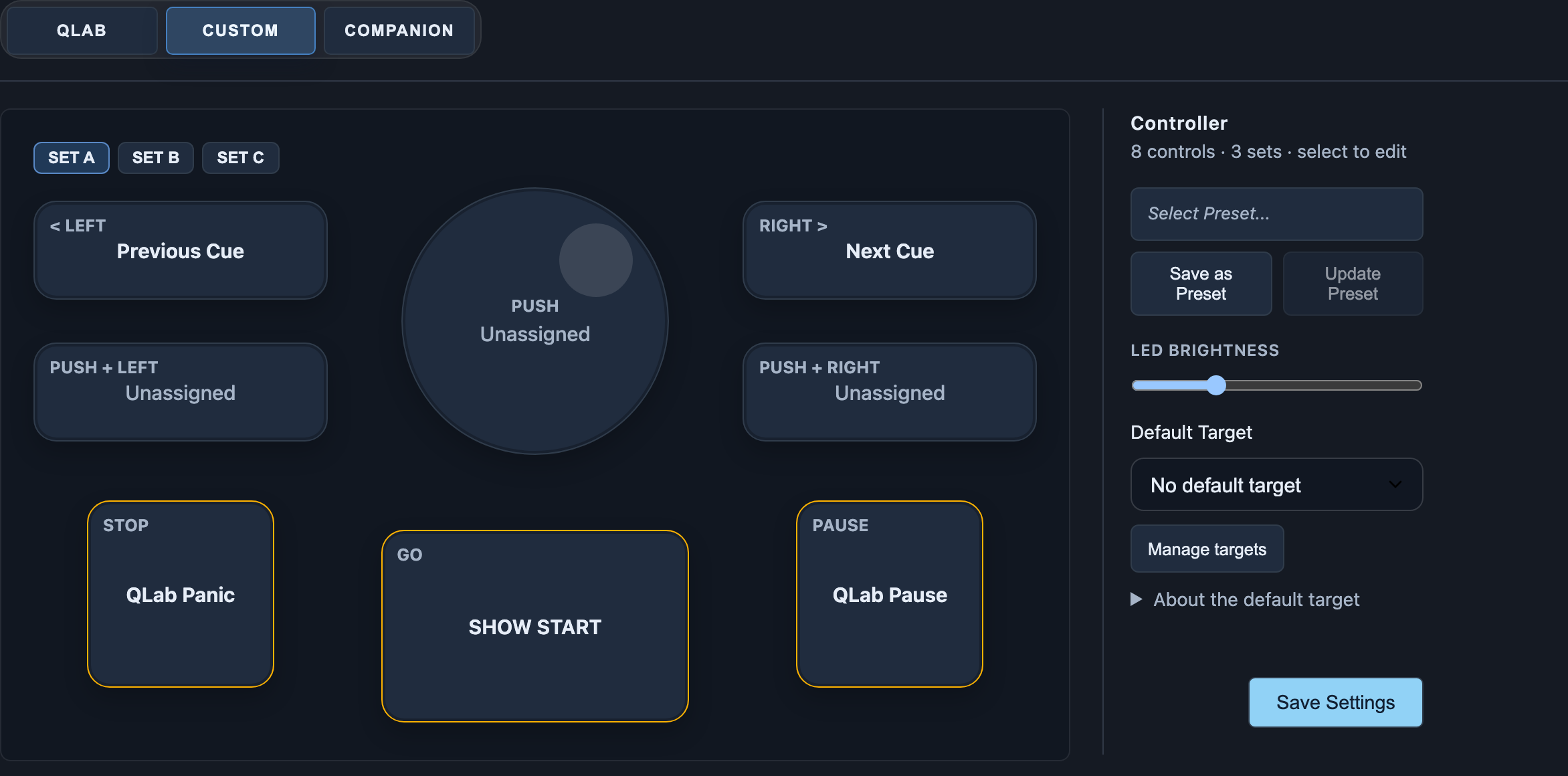
| Trigger your own sequences | Custom Mode, three button sets, presets and multi-step macros |
| Connect devices | MIDI, OSC, HTTP, TCP, Art-Net and sACN; targets and plugins make setup quicker |
| Send MIDI over the network | RTP-MIDI, including automatically reconnecting peers |
| Store lighting looks | Snapshots, fades and the encoder as a master fader |
| Work with timecode | MTC master, USB/Art-Net bridge and LTC; timeline for timed macros |
| Add more controls | Stream Deck with images, feedback, variables, pages, layouts and on-deck tools |
| Operate Companion | Companion Mode as a satellite, optionally with a separate deck surface |
| Control from other software | Companion module, grandMA3 plugin and OSC control |
| Control presentations | HID Mode as a keyboard and mouse |
| Configure over USB | USB Network |
| Maintain your setup | Storage management, backup and firmware updates |
The web interface
The sidebar takes you directly to Settings, Device Mode, Streamdeck, Timeline, Network Targets and Plugins. The phone layout is described in Getting to know the web interface. This manual shows the current screens and uses the English labels of the web interface.